Reply-To Tutorial
This tutorial is about setting your current email address to be able to reply as if you have done so using a up-ame.org email.
Jump to:
For Gmail:
- Go to your Gmail account's settings.
Next
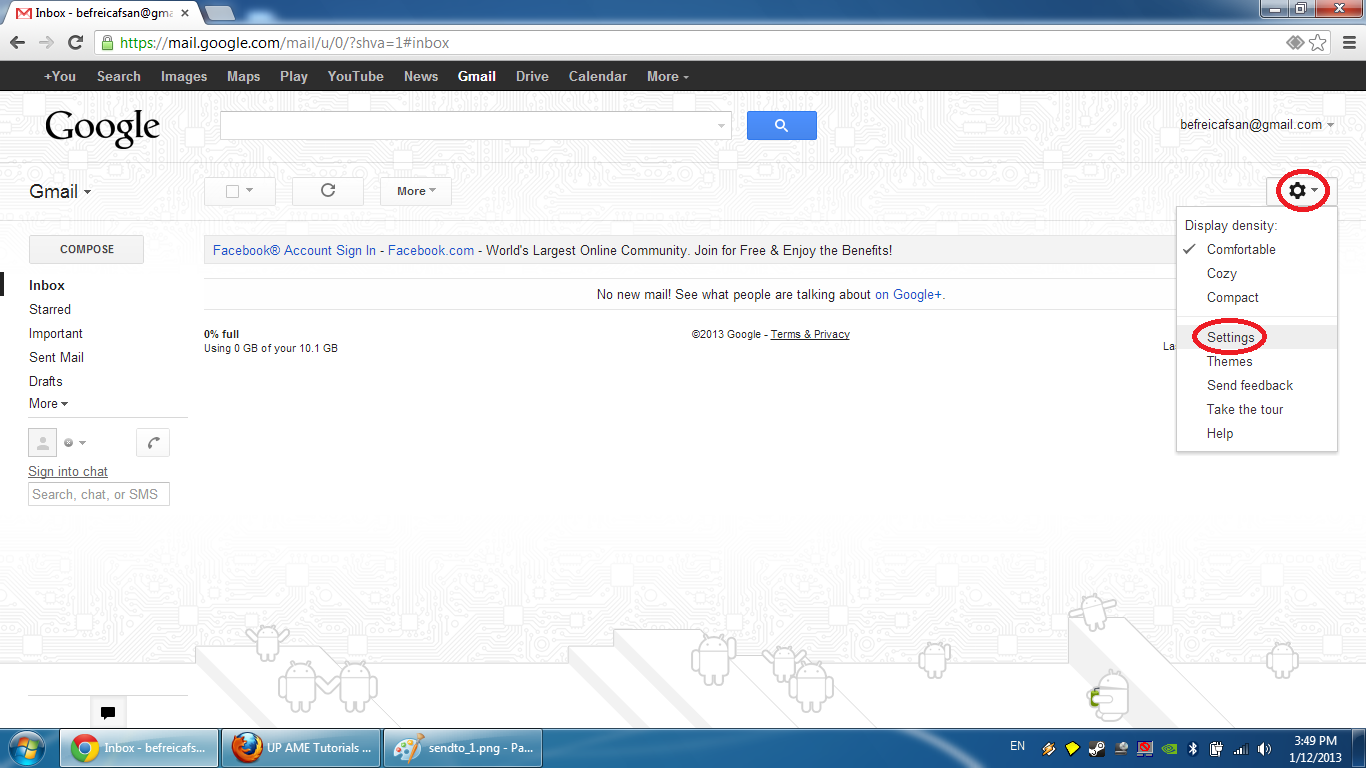
- Enter the "Accounts and Import tab" and click "Add another email address you own".
Next
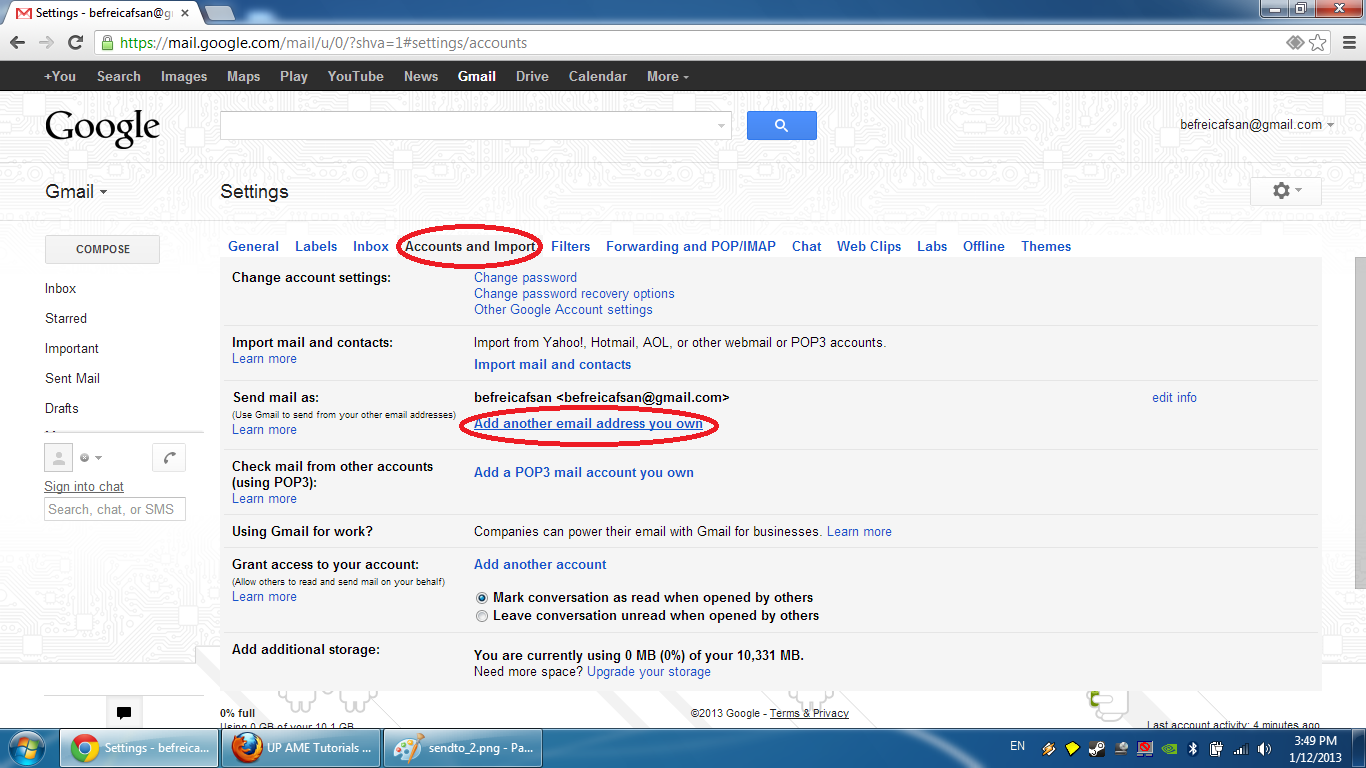
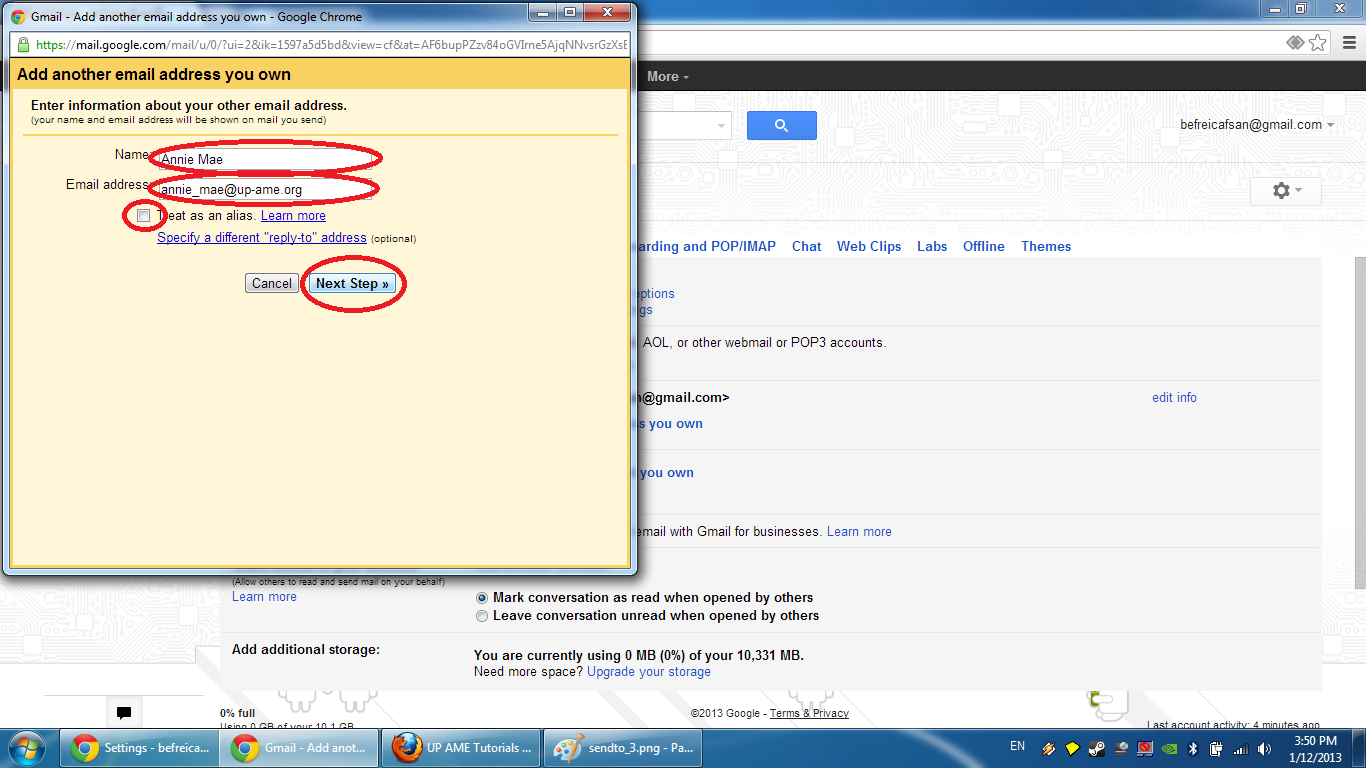
- Change the name and email address, untick "Treat as an alias.", and click "Next Step".
Next
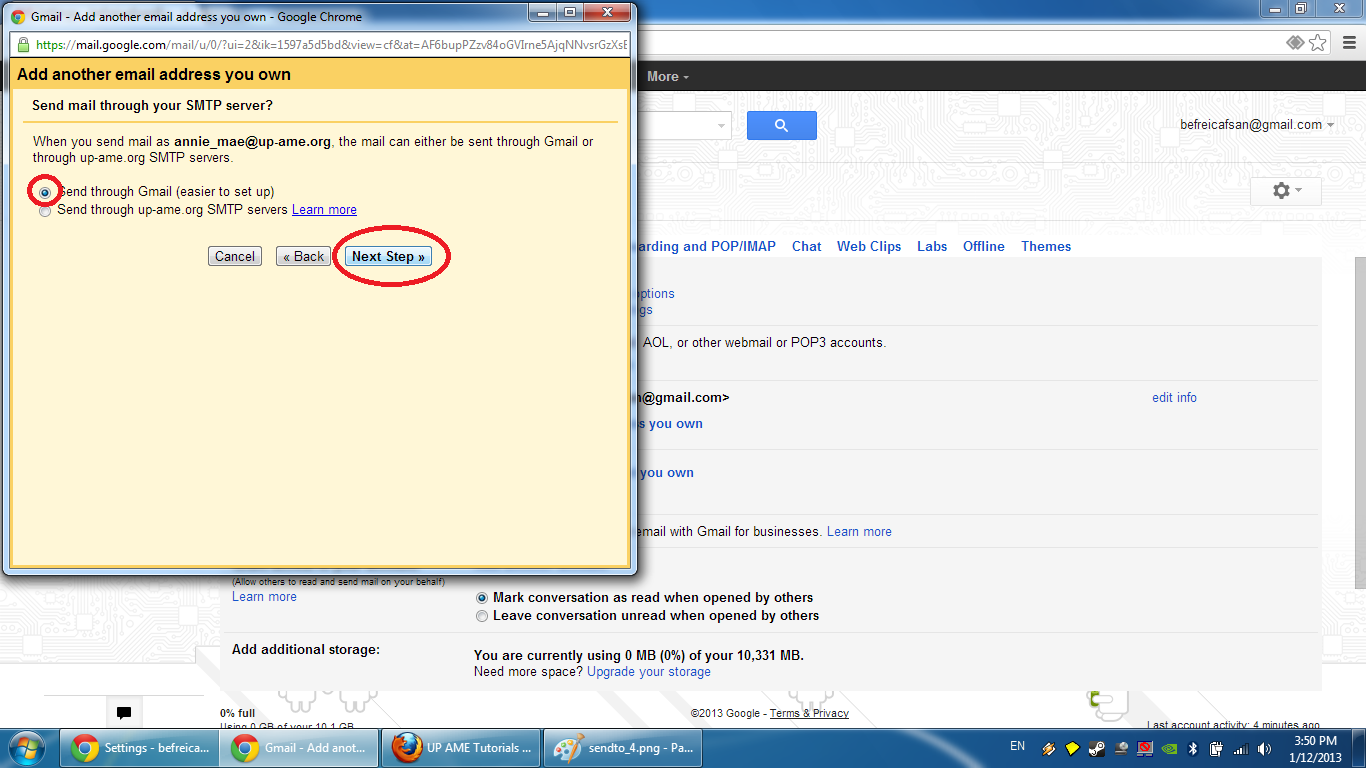
- Tick "Send through Gmail (easier to set up)" and click "Next Step".
Next
- Make sure the email displayed is correct, then click "Send Verification".
Next
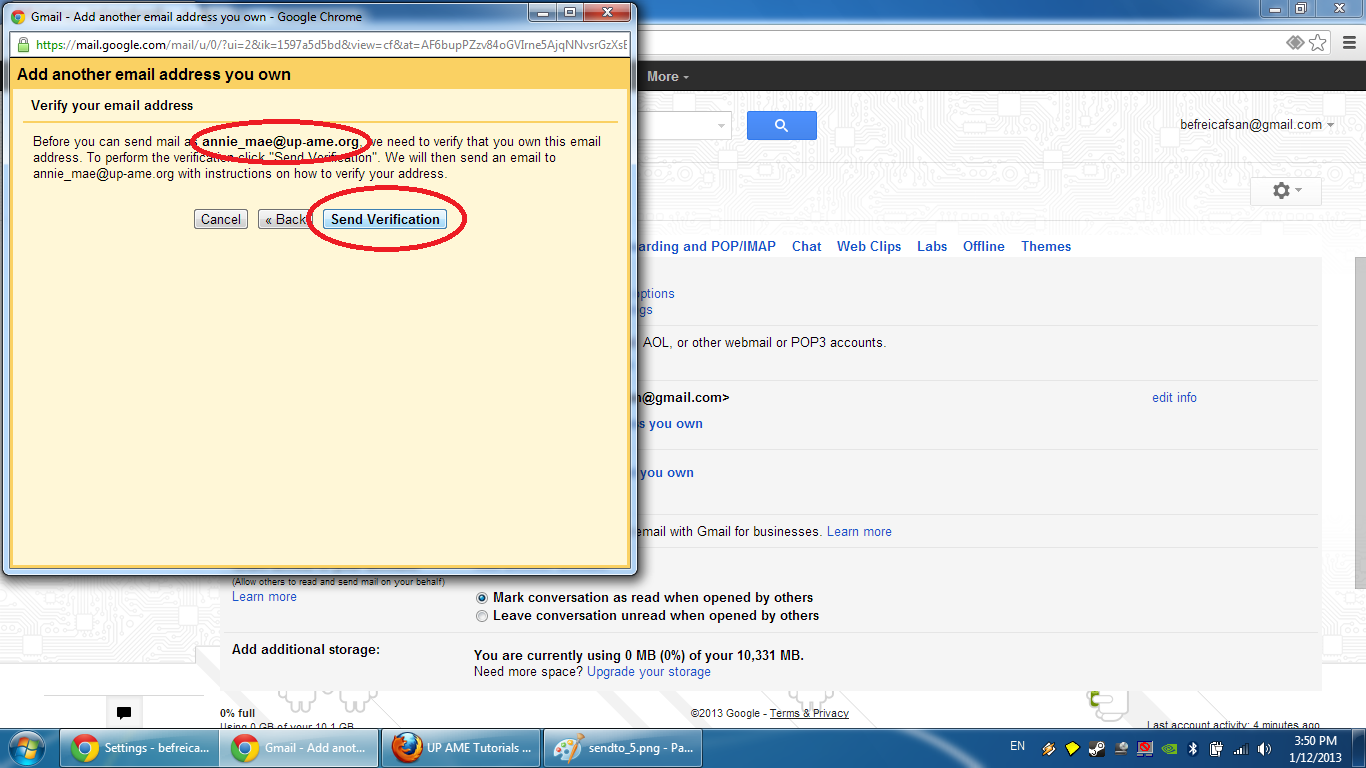
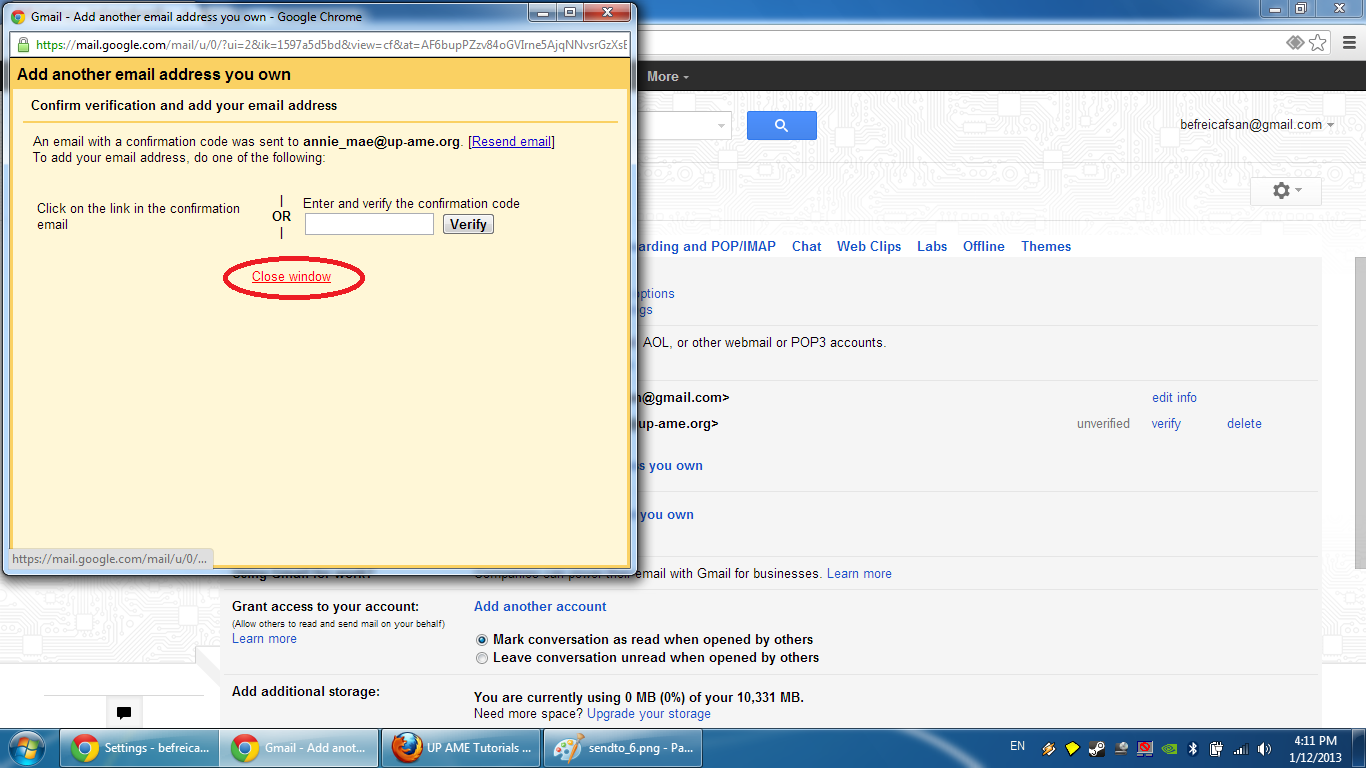
Please note that you can stop here, ask the administrator for the code, and enter the confirmation code manually.
Next
- Click "Close window"
Next
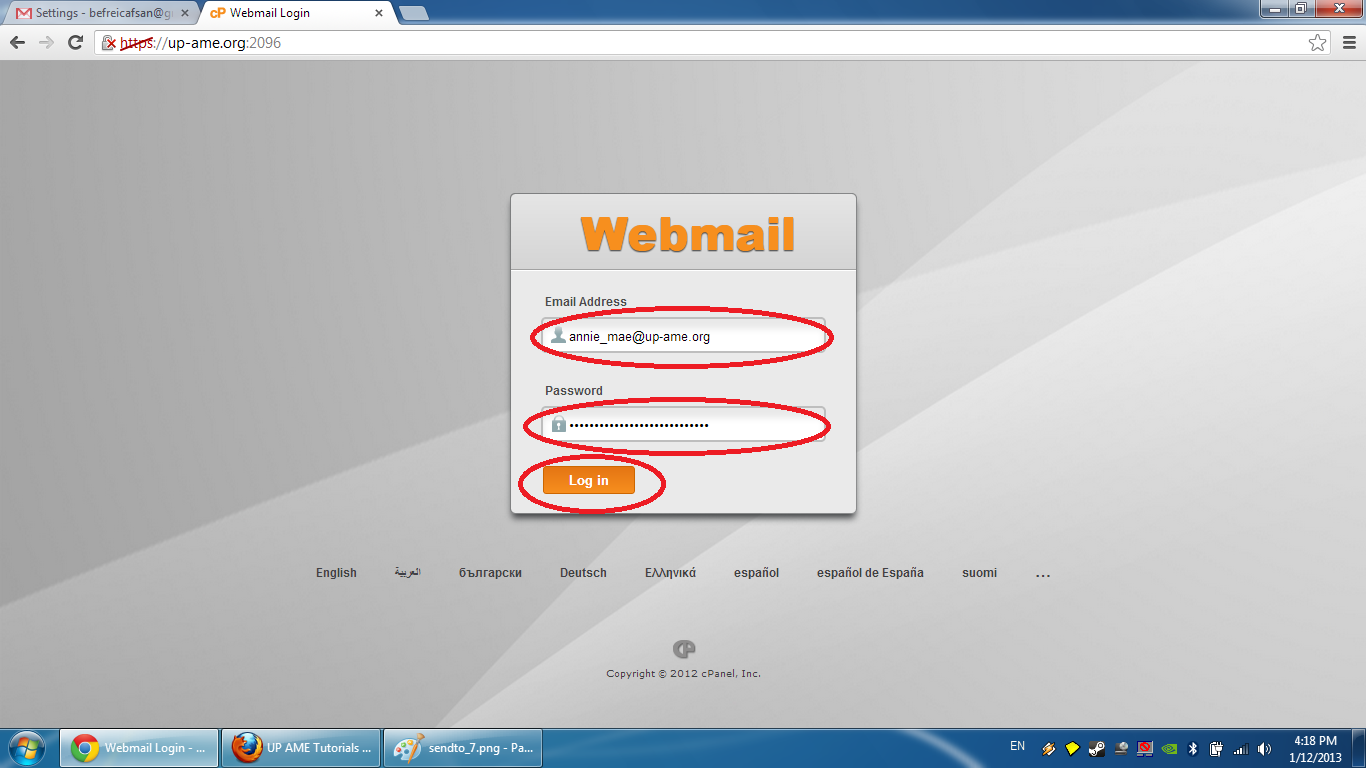
- Go to http://mail.up-ame.org/ and login with the email and password given by the adminstrator.
Next
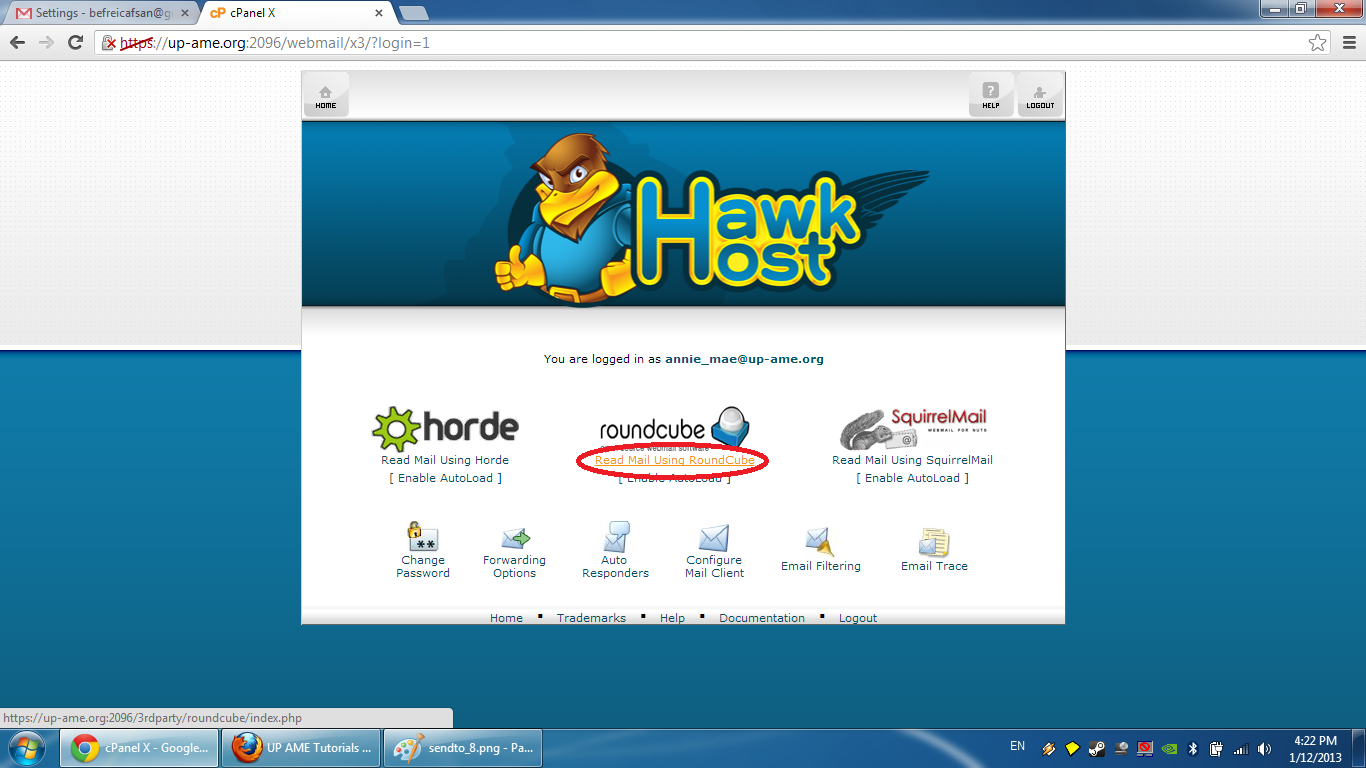
- Click "Read Mail Using RoundCube".
Next
- Double-click the Gmail confirmation email corresponding to your email address.
Next
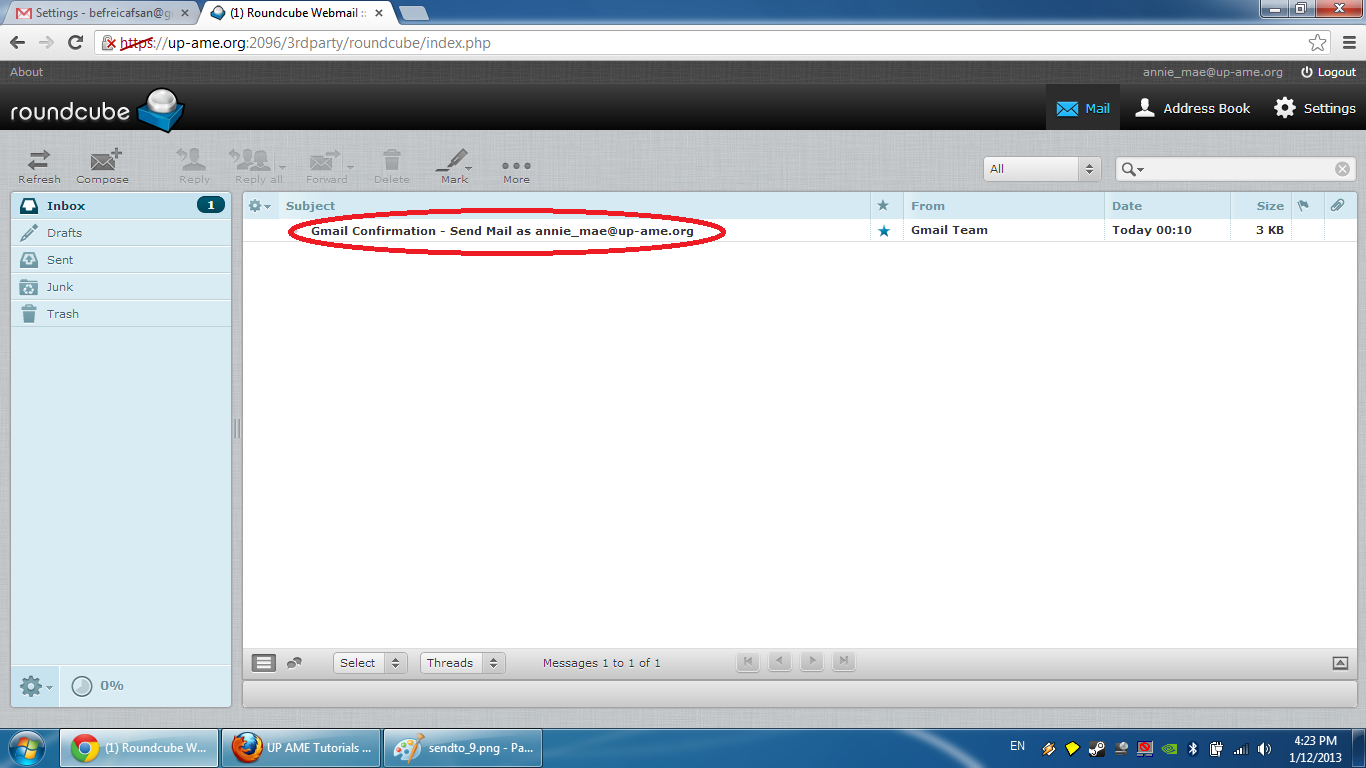
- Click the link in the email.
Next
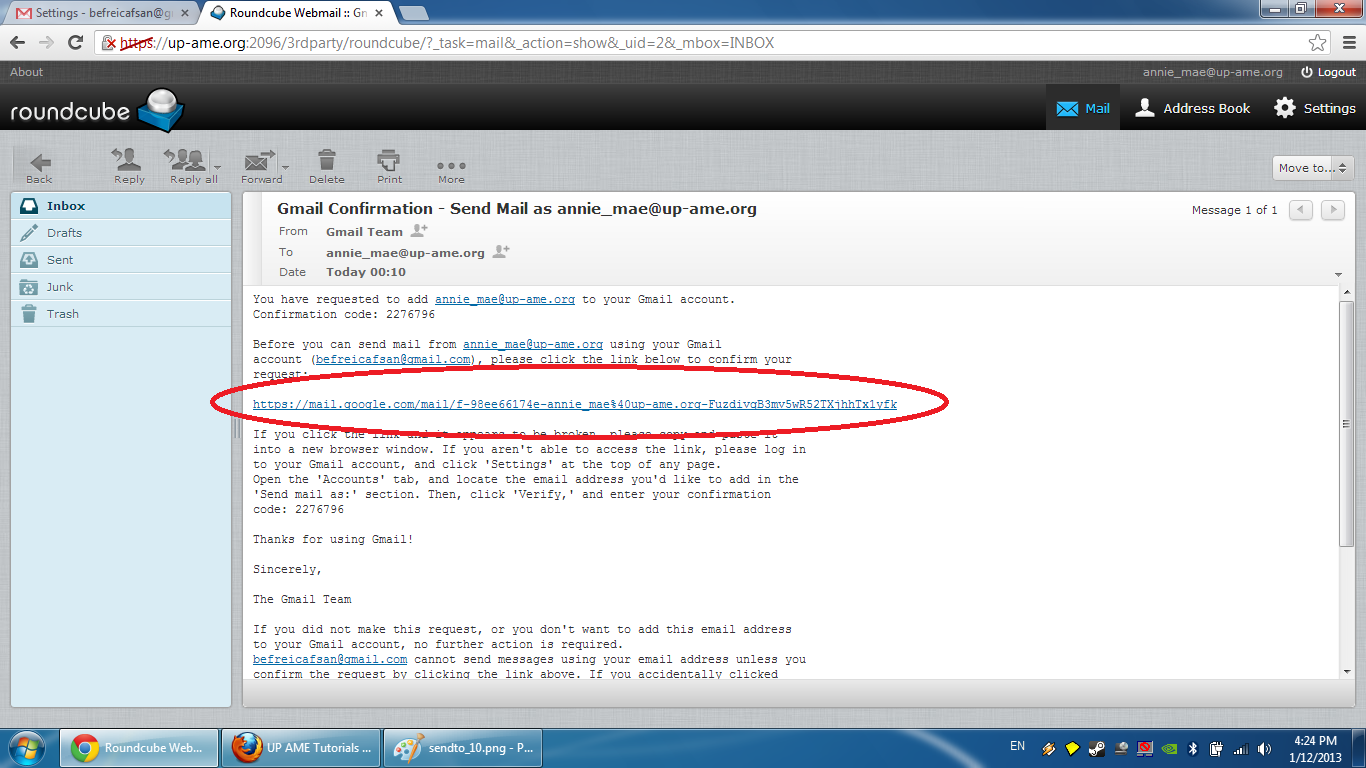
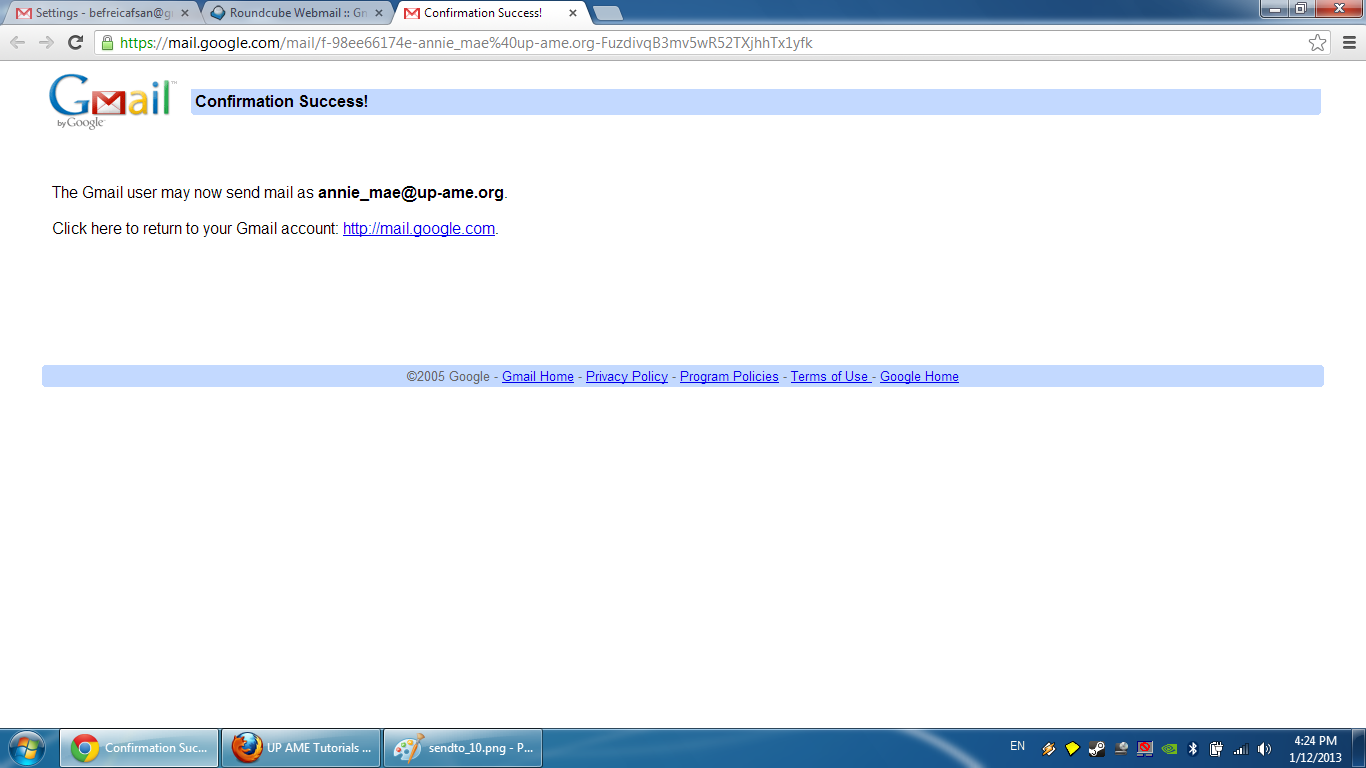
- You may now use your Gmail account to send as the specified up-ame.org email.
Next
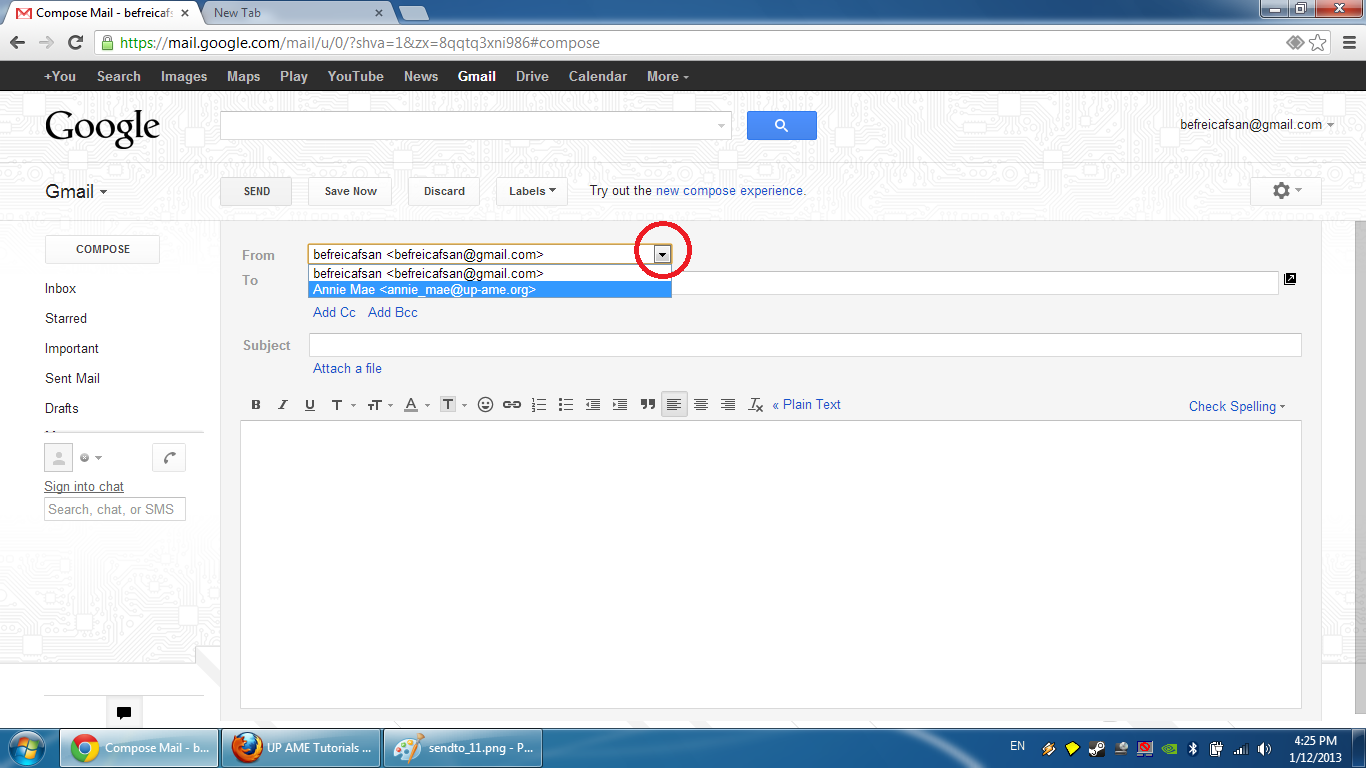
- This option can be found when creating email messages.
For Yahoo! Mail:
- Go to your Yahoo! Mail account's mail options.
Next
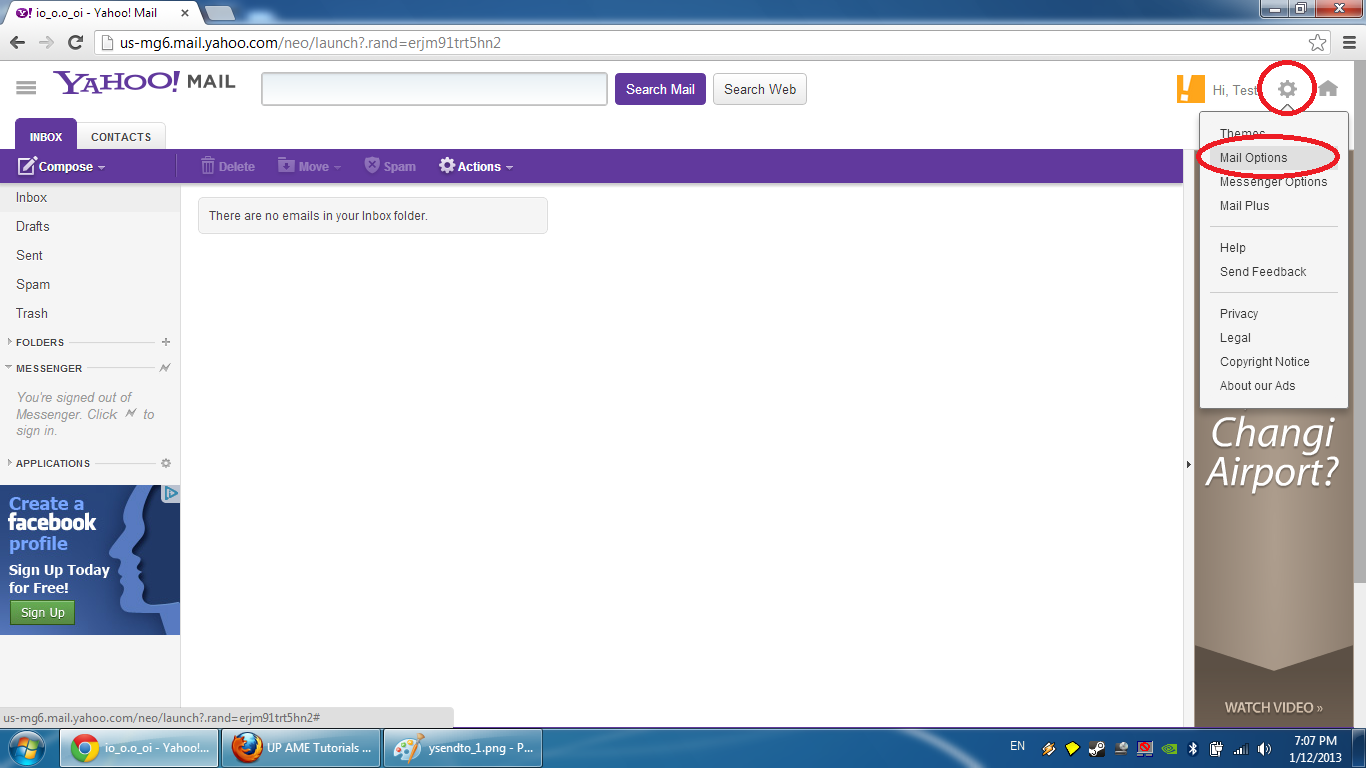
- Click "Mail Accounts" and then "Add".
Next
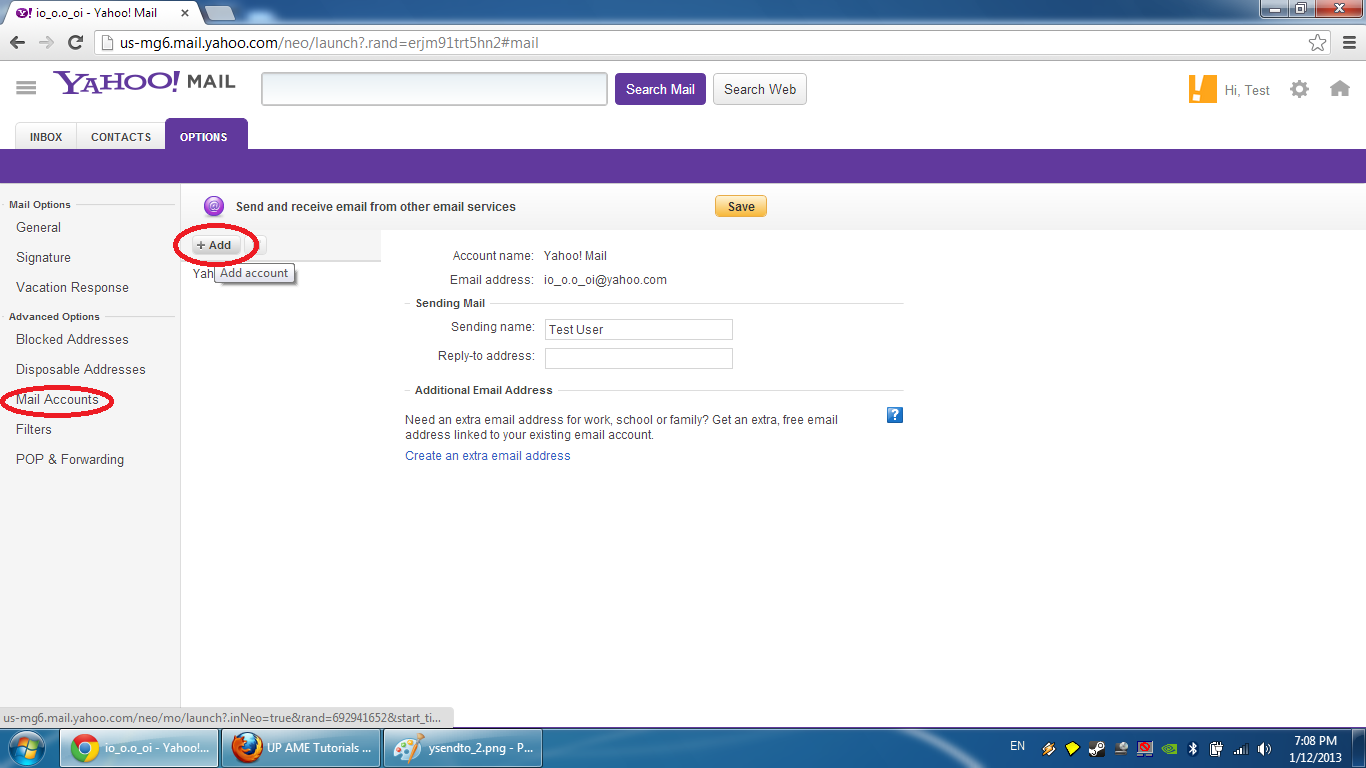
- Enter the account name (any name will do) and the up-ame.org email address, and click "Continue".
Next
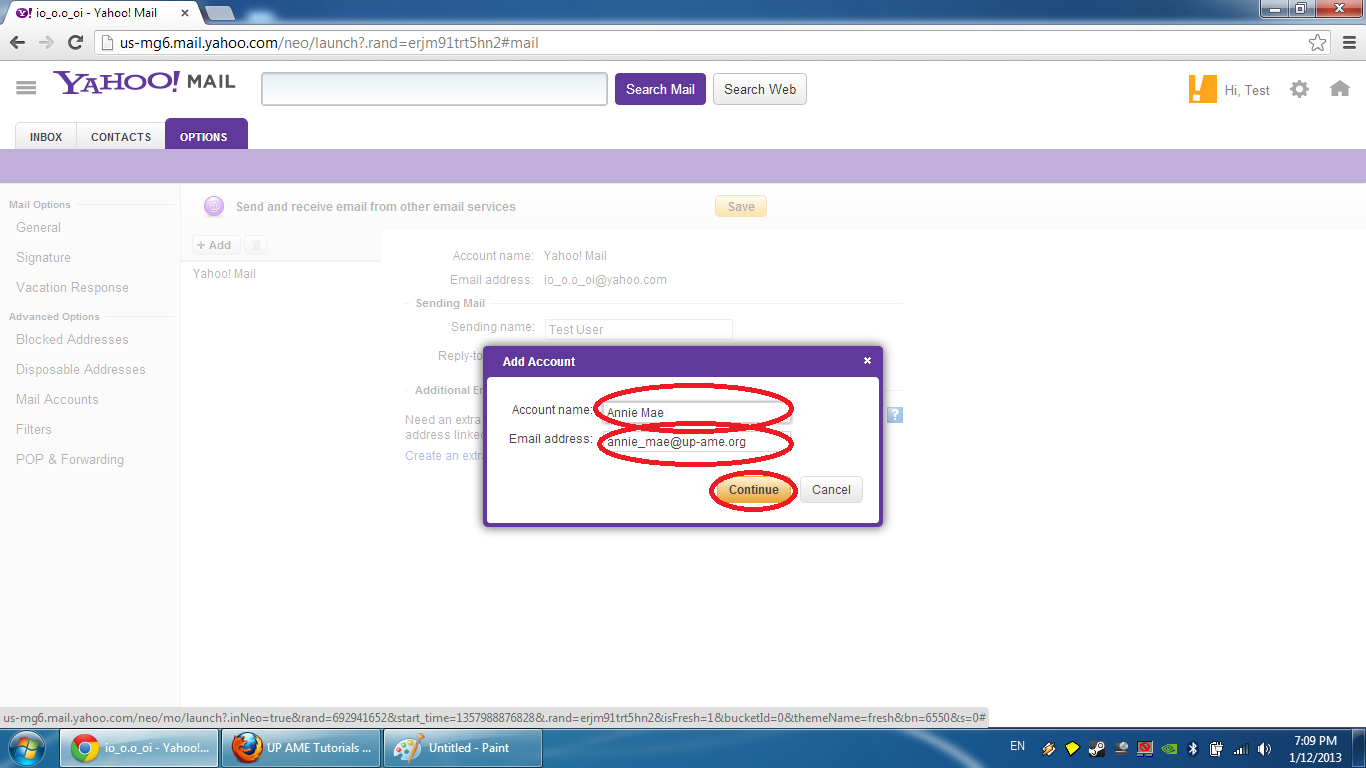
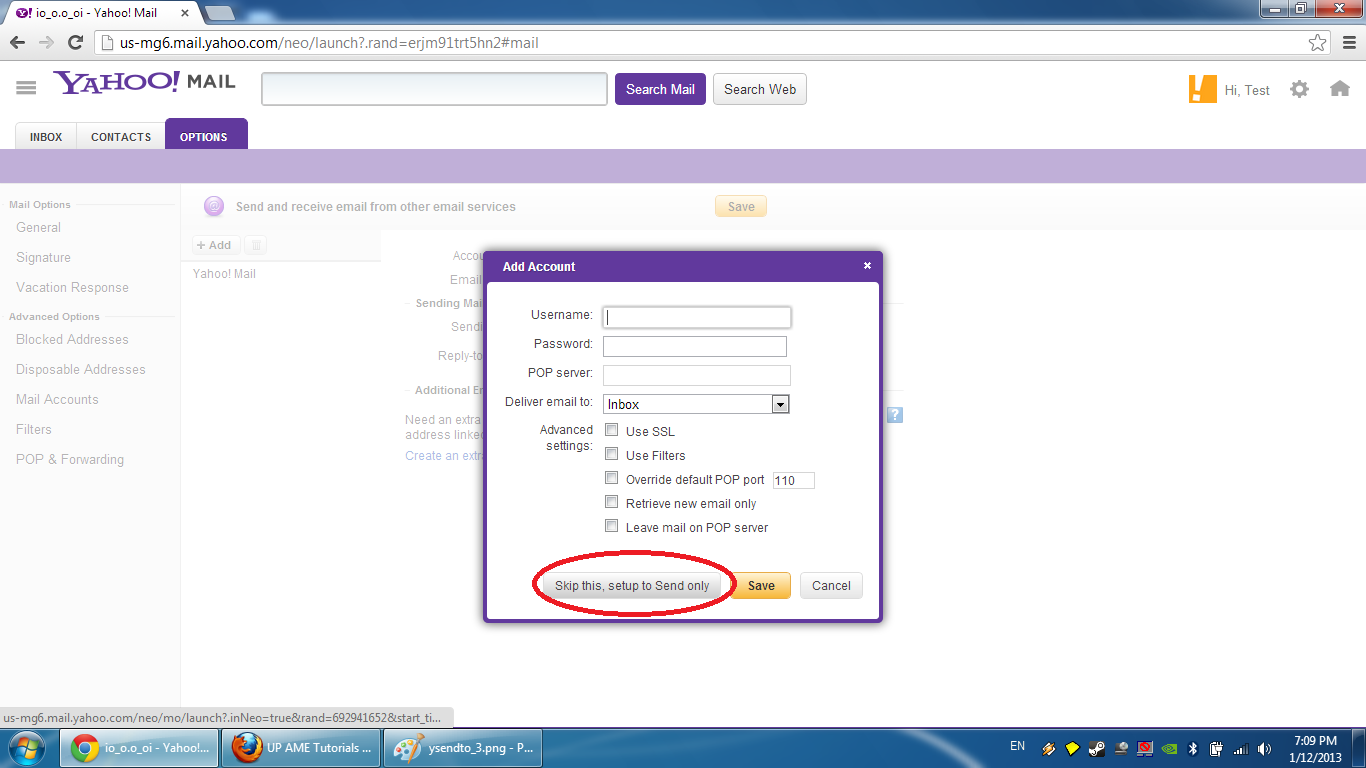
- Click "Skip this, setup to Send only".
Next
- Click "OK".
Next
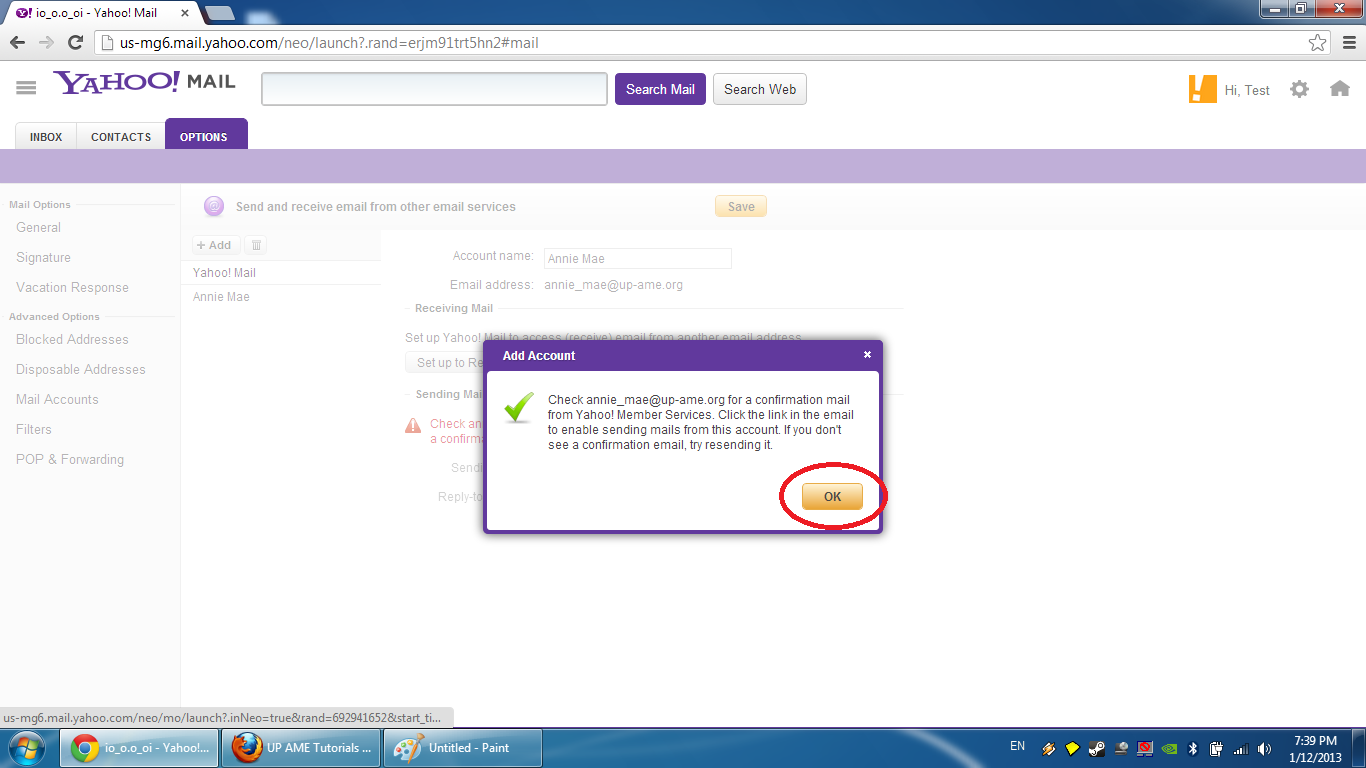
Please note that you can stop here, ask the administrator for the confirmation link, and enter the link manually.
Next
- Go to http://mail.up-ame.org/ and login with the email and password given by the adminstrator.
Next
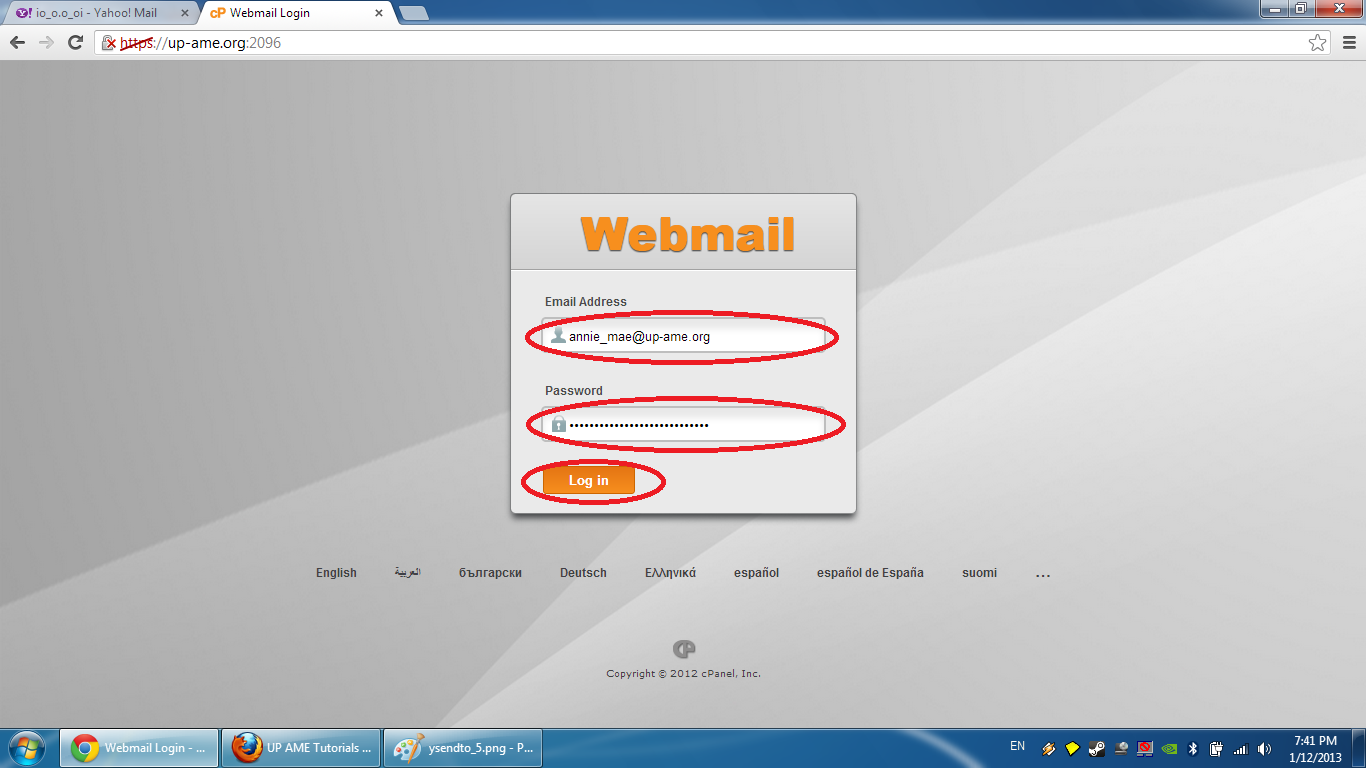
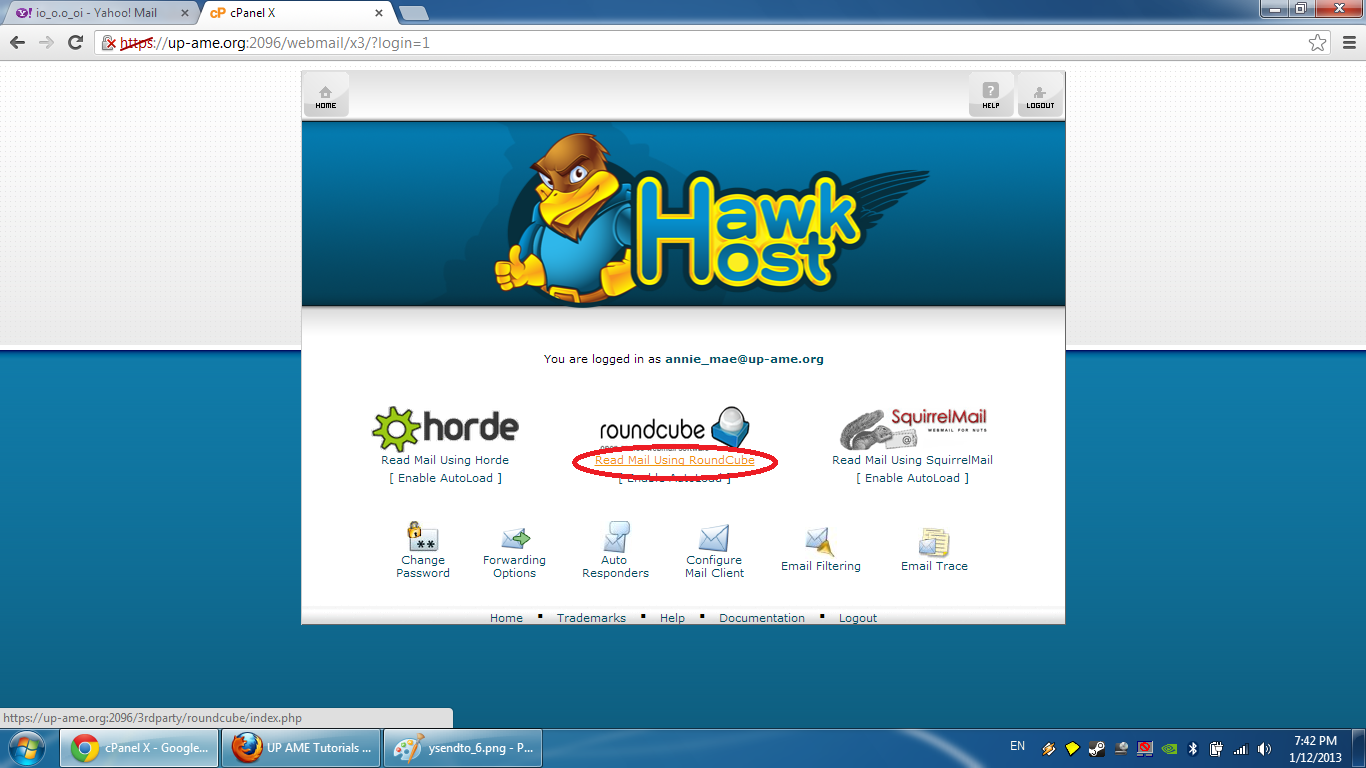
- Click "Read Mail Using RoundCube".
Next
- Click the link in the email of Yahoo! corresponding to your verification email.
Next
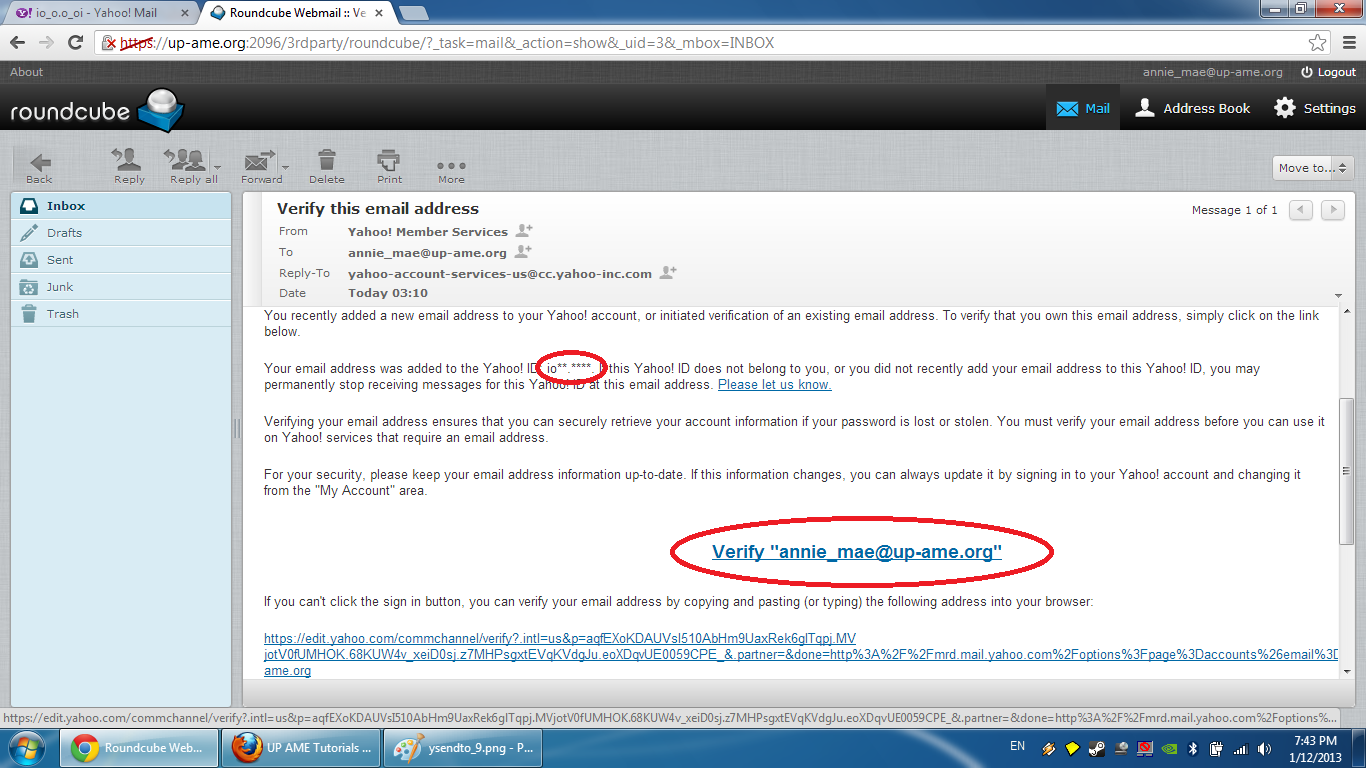
- Click "Continue".
Next
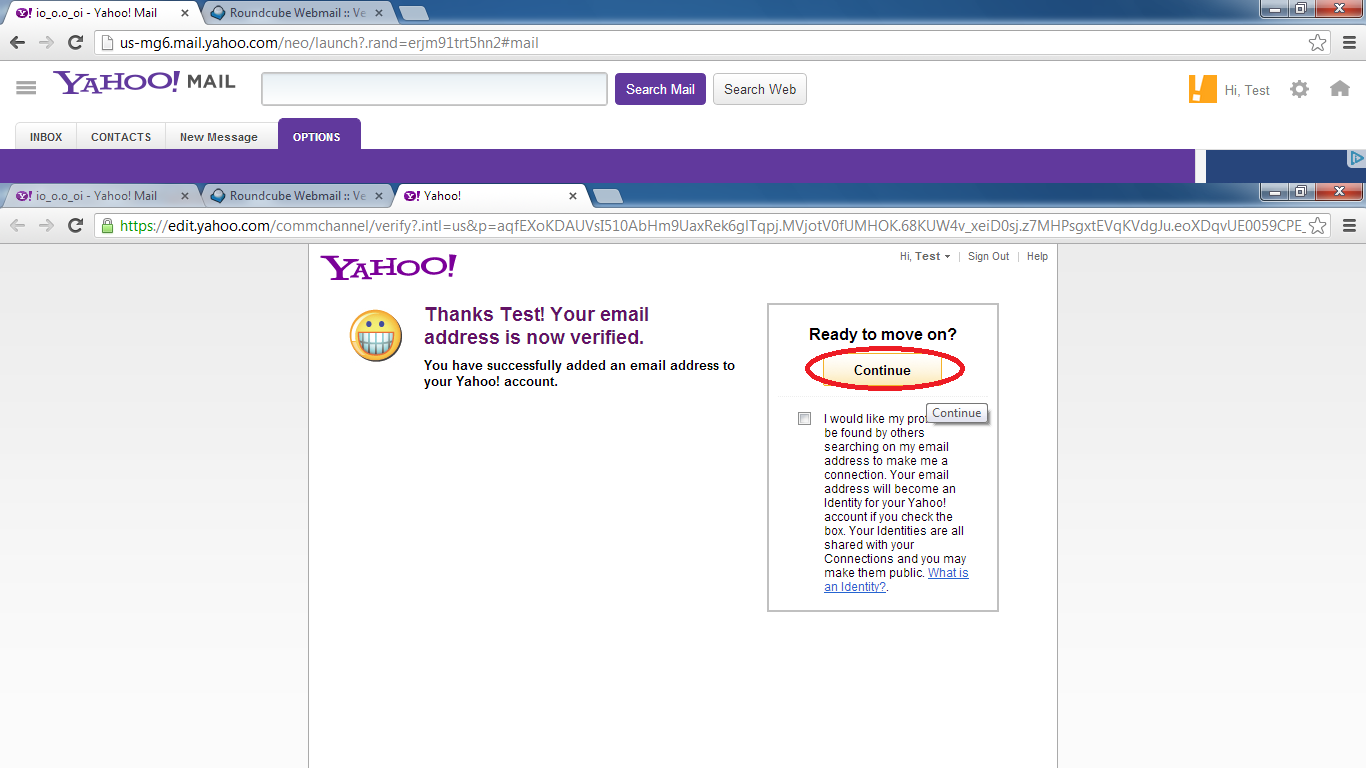
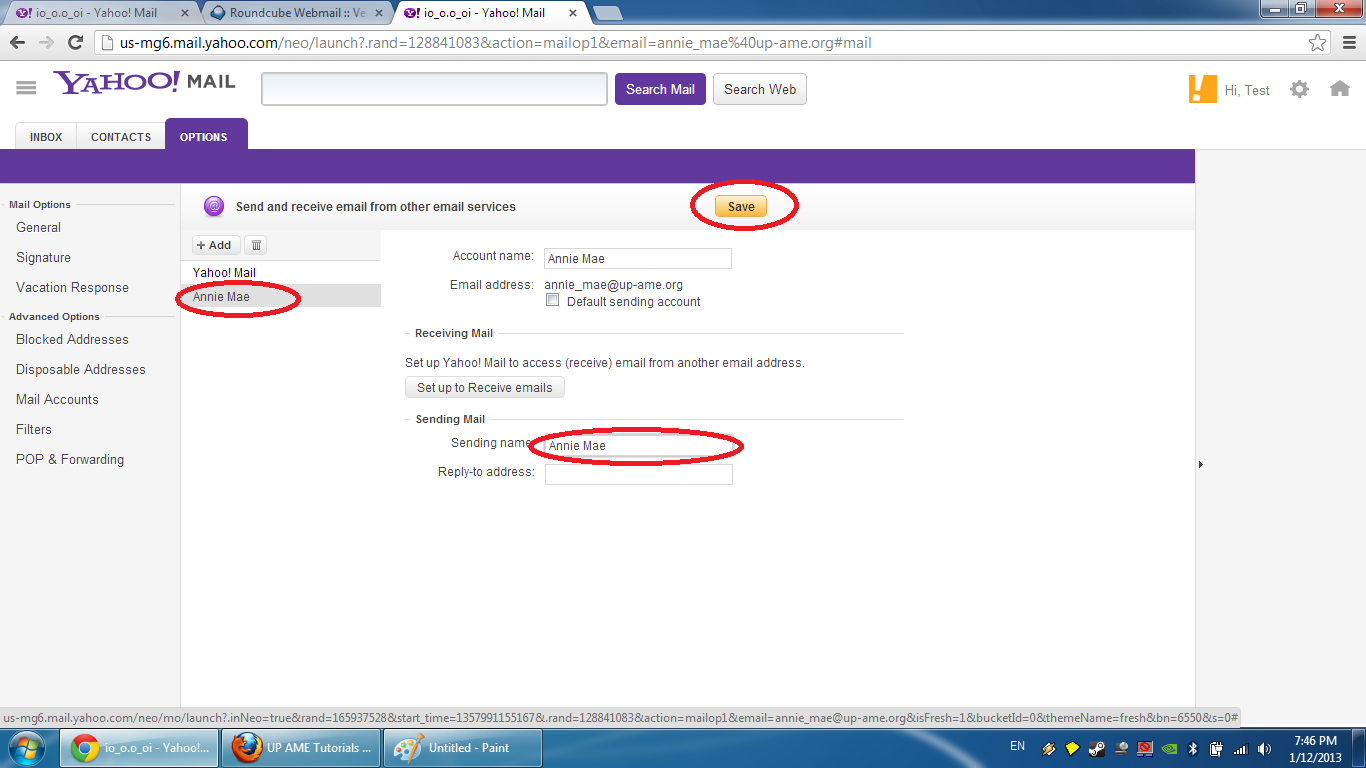
- Return to your Yahoo! Mail account's mail options and enter the name to be displayed when you reply using a up-ame.org handle.
Next
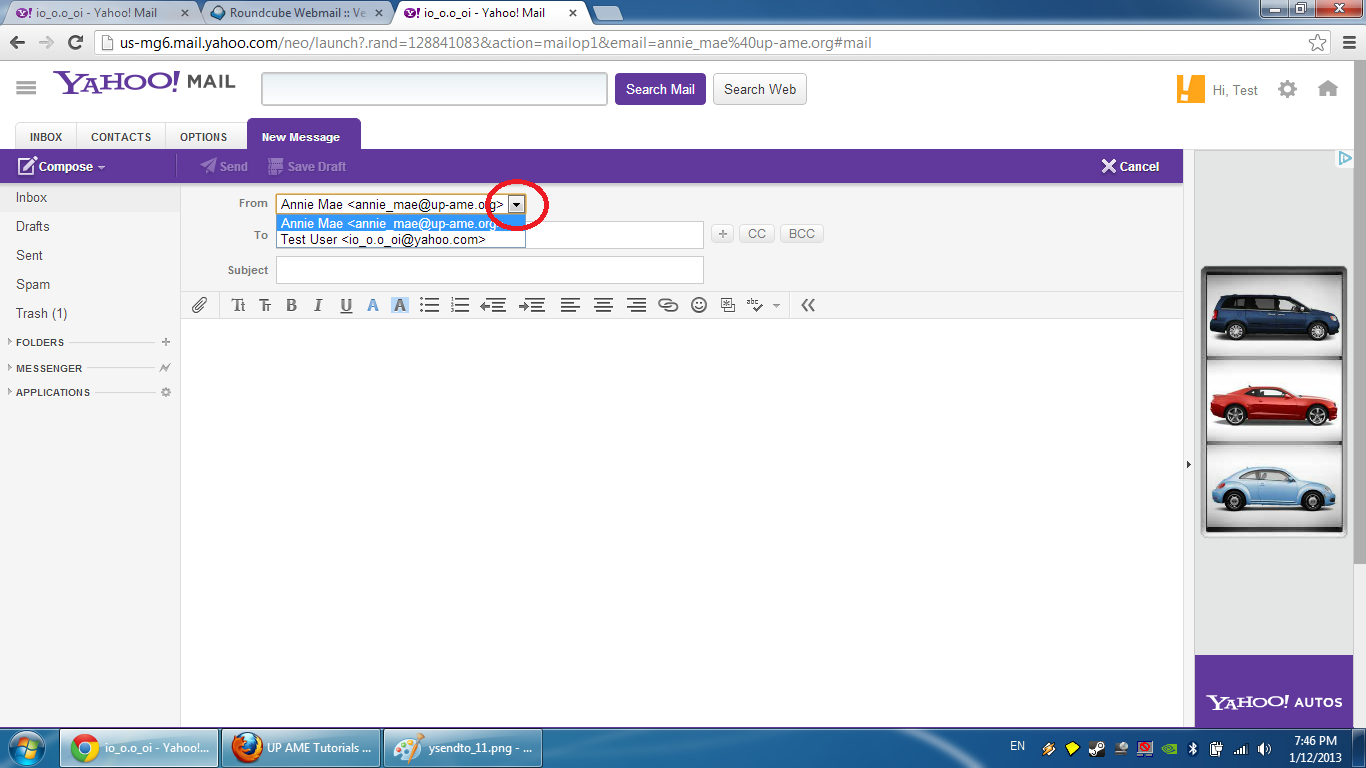
- This option can be found when creating email messages.
For other email service providers:
Please contact the administrator for instructions on how this may be achieved.